Hi Guys,
Lets see how to create Facebook login in your website using JavaScript SDK
Step 1:
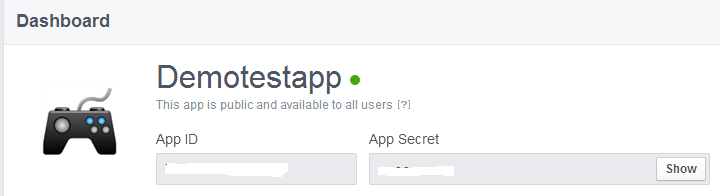
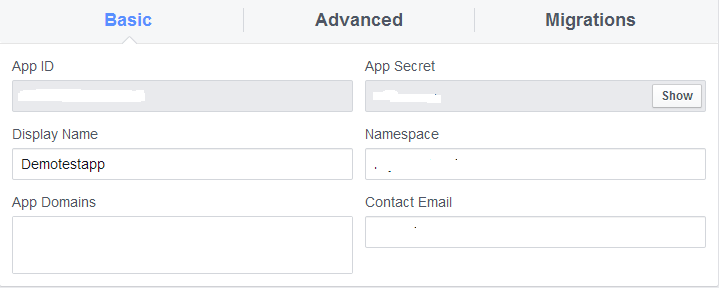
For implementing Facebook related stuff, first we need to create an Facebook App.
You can refer my previous post for creating an app in Facebook.
http://oraclejavazone.blogspot.com/2014/05/how-to-create-app-in-facebook-with-user.html
Step 2:
Load your JavaScript SDK in your JSP file. You can load SDK either Synchronously or Asynchronously.
I am loading the SDK Asynchronously.
Add the below code after opening <body> tag in your JSP file.
For more details refer https://developers.facebook.com/docs/facebook-login/login-flow-for-web/v2.0
Step 3:
Create the Facebook Login Button using <fb:login-button>.
Add the below code to your JSP file.
That's All Folks...
Lets see how to create Facebook login in your website using JavaScript SDK
Step 1:
For implementing Facebook related stuff, first we need to create an Facebook App.
You can refer my previous post for creating an app in Facebook.
http://oraclejavazone.blogspot.com/2014/05/how-to-create-app-in-facebook-with-user.html
Step 2:
Load your JavaScript SDK in your JSP file. You can load SDK either Synchronously or Asynchronously.
I am loading the SDK Asynchronously.
Add the below code after opening <body> tag in your JSP file.
<div id="fb-root"></div>
<script>
var AccessToken;
window.fbAsyncInit = function() {
FB.init({
appId: 'your app id',
xfbml: true, //for parsing social plugins
status: true, //for getting user status
cookie: true, //save cookie
version:'v2.0' //version of graph API
});
FB.getLoginStatus(function(response) {
statusChangeCallback(response);
});
};
(function(d, s, id) {
var js, fjs = d.getElementsByTagName(s)[0];
if (d.getElementById(id)) return;
js = d.createElement(s); js.id = id;
js.src = "//connect.facebook.net/en_US/sdk.js";
fjs.parentNode.insertBefore(js, fjs);
}(document, 'script', 'facebook-jssdk'));
//checking login status of user
function statusChangeCallback(response) {
if(response && response.status == 'connected') {
alert('User is authorized');
AccessToken = response.authResponse.accessToken; //Get the user access token from the auth //response
console.log('Welcome! Fetching your information.... ');
FB.api('/me', function(response) {
console.log('Good to see you, ' + response.name + '.' + response.id);
});
console.log(AccessToken);
} else {
alert('User is not authorized');
}
}
function checkLoginState() {
FB.getLoginStatus(function(response) {
statusChangeCallback(response); });
}
</script>
<script>
var AccessToken;
window.fbAsyncInit = function() {
FB.init({
appId: 'your app id',
xfbml: true, //for parsing social plugins
status: true, //for getting user status
cookie: true, //save cookie
version:'v2.0' //version of graph API
});
FB.getLoginStatus(function(response) {
statusChangeCallback(response);
});
};
(function(d, s, id) {
var js, fjs = d.getElementsByTagName(s)[0];
if (d.getElementById(id)) return;
js = d.createElement(s); js.id = id;
js.src = "//connect.facebook.net/en_US/sdk.js";
fjs.parentNode.insertBefore(js, fjs);
}(document, 'script', 'facebook-jssdk'));
//checking login status of user
function statusChangeCallback(response) {
if(response && response.status == 'connected') {
alert('User is authorized');
AccessToken = response.authResponse.accessToken; //Get the user access token from the auth //response
console.log('Welcome! Fetching your information.... ');
FB.api('/me', function(response) {
console.log('Good to see you, ' + response.name + '.' + response.id);
});
console.log(AccessToken);
} else {
alert('User is not authorized');
}
}
function checkLoginState() {
FB.getLoginStatus(function(response) {
statusChangeCallback(response); });
}
</script>
For more details refer https://developers.facebook.com/docs/facebook-login/login-flow-for-web/v2.0
Step 3:
Create the Facebook Login Button using <fb:login-button>.
Add the below code to your JSP file.
<fb:login-button scope="public_profile,email" onlogin="checkLoginState();" autologoutlink="true">
</fb:login-button>
</fb:login-button>
- scope="public_profile,email" used to retrieve the data's that you wish to get from Facebook once user get logged in successfully.
- autologoutlink="true" enable log out button once user logged in to your website using Facebook.
That's All Folks...